Learn how to connect your Apple Pencil in a few easy steps
Now that you’ve invested in an iPad, you need to figure out how to connect your Apple Pencil. In this guide, we’ll answer all the most common questions about how to connect your Apple Pencil to your iPad.
We’ll cover:
- How to connect Apple Pencil Gen 1 to iPad
- How to connect Apple Pencil Gen 2 to iPad
- Troubleshooting tips
- How to disconnect your Apple Pencil
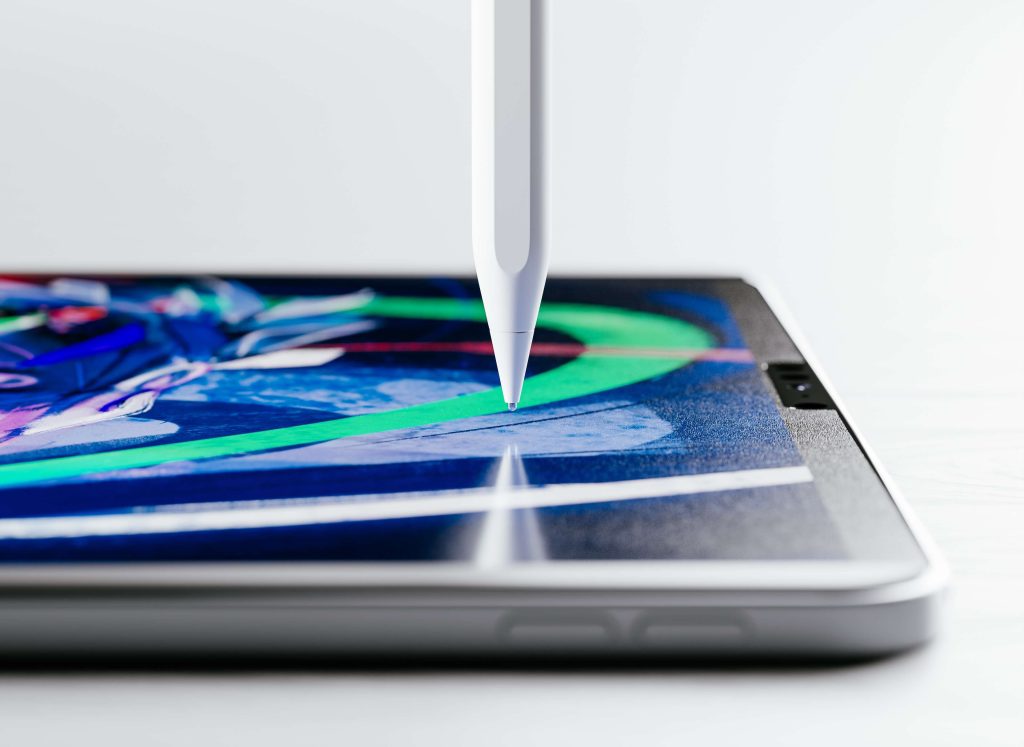
How to Connect Apple Pencil Gen 1 to iPad
So, how do you connect your Apple Pencil to your iPad?
If you have the 1st generation Apple Pencil, the process has a few extra steps:
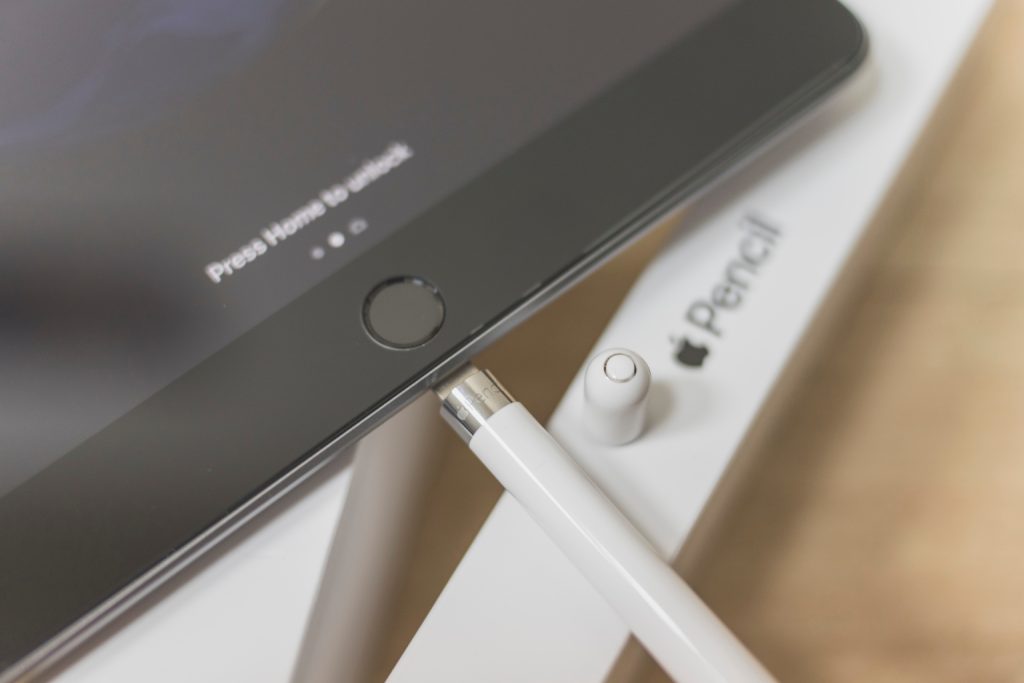
- Remove the cap on the end of your Apple Pencil to access the lightning connector.
- Plug your Apple Pencil into your iPad’s lightning connector. If you have a 10th-generation iPad, you need to buy a USB-C to Apple Pencil adapter.
- A message will pop up on your iPad that says “Bluetooth pairing request”. Simply tap “pair”, remove your Apple Pencil, and begin using it.
How to Connect Apple Pencil Gen 2 to iPad
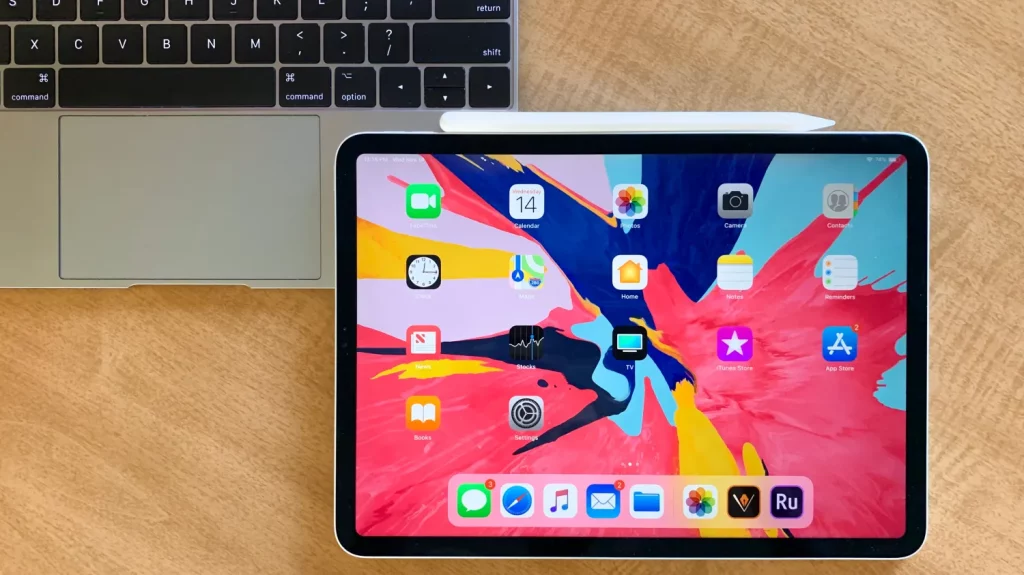
It is much easier to connect the 2nd generation Apple Pencil.
- Go into Settings on your iPad and turn Bluetooth on.
- Find the flat, magnetic edge of your Apple Pencil.
- Attach the flat edge to the right side of your iPad.
- A notification will pop up on your iPad. Simply press “connect”, and start using your Apple Pencil.
How to Connect Apple Pencil Pro to Your iPad
As far as connectivity is concerned, the Apple Pencil Pro operates almost identically to the Apple Pencil 2. Both styluses have wireless charging, so it has never been easier to connect your Apple Pencil.
- Turn Bluetooth on.
- Place the flat edge of the stylus on the magnetic edge of your iPad.
- Wait for the notification, then press “connect”.
Once you have pressed “connect”, you can start using your stylus.
Struggling to Connect? Try These Troubleshooting Tips
If you are struggling to pair your Apple Pencil with your iPad, we have a few simple tips and tricks to solve your problem.
Charge Your Apple Pencil
This sounds simple enough, but you would be surprised by how many people forget to charge their Apple Pencils!
Before you even attempt to connect your Apple Pencil to your iPad, make sure your Apple Pencil has at least 50% battery life remaining.
Turn Bluetooth On
It’s possible that you’ve accidentally turned Bluetooth off. Simply go to Settings on your iPad and turn Bluetooth back on.
Check Your Lightning Connectors
The lightning connector in either your Apple Pencil or iPad could be damaged. There is no surefire way to check for damage because it could be internal. However, if you want to assess the situation, simply look for metal damage on your Apple Pencil’s lightning connector. You can also use a flashlight to check the lightning connector on your iPad. If you notice bits of debris, your lightning connector might need some maintenance.
The important thing to remember is to never attempt to repair tech yourself. After all, you could make the problem worse. If you have tried all our other tips and tricks and still think that your lightning connector is the problem, take your tech to an Apple Repair Center.
Still having trouble? Read our advice on How to Fix an Unresponsive Apple Pencil.
How to Disconnect Your Apple Pencil
We’ve covered how to connect an Apple Pencil to an iPad, so now go over how to disconnect an Apple Pencil.
The good news is that it is easy to disconnect (or unpair) an Apple Pencil.
- Go to Settings on your iPad.
- Go to Bluetooth.
- Under “my devices”, you will see your Apple Pencil. Tap the blue “i” icon, then select “Forget this device”.
It really is that easy. Of course, you can reconnect your Apple Pencil when you need it.
How to Connect Apple Pencil to iPad Without Plugging in?
You can only connect your Apple Pencil to your iPad without plugging it in if you have a 2nd generation or Apple Pencil Pro stylus. Both pencils have a magnetic strip that wirelessly connects to your iPad’s Bluetooth.
Upgrade your Apple Pencil tip with Rock Paper Pencil
Once your Apple Pencil is connected, you can explore all the brilliant tech that iPads have to offer. If you’ve invested in an Apple Pencil, chances are that you want to take realistic handwritten notes or even create digital art.
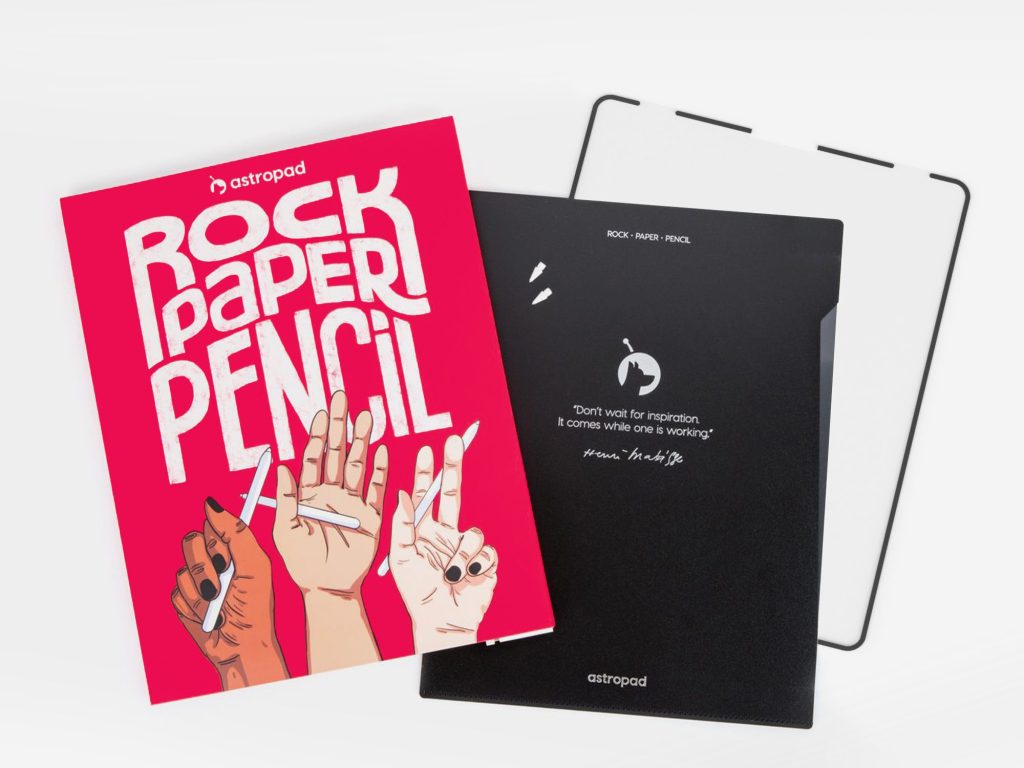
You can use Rock Paper Pencil to enhance your iPad writing/ drawing experience. Rock Paper Pencil combines a ballpoint Apple Pencil tip and a reusable, matte screen protector. Together, they create the most realistic pen-on-paper feeling for iPad.
- Ditch the slip: On its own, the iPad’s glass screen is a slippery surface that creates an inconsistent drag on your Apple Pencil.
- Smoother, more precise strokes: Rock Paper Pencil adds subtle friction between your screen and Apple Pencil tip, giving you more control with each stroke output.