Is your Apple Pencil acting up or suddenly unresponsive with your iPad? Don’t worry! You’re not alone, and in most cases, it’s a quick fix.
Whether you’re using the Apple Pencil (1st gen), Apple Pencil (2nd gen), Apple Pencil USB-C, or the newest Apple Pencil Pro, this guide will help you get things working again.
Why isn’t your Apple Pencil working?
If your Apple Pencil stopped working or is unresponsive with your iPad, it’s usually due to one of these reasons:
- Your Apple Pencil battery is dead and needs to be recharged.
- Your Apple Pencil disconnected from your iPad and needs to be re-paired.
Here are three main steps to troubleshoot an unresponsive Apple Pencil:
1. Charge your Apple Pencil battery
A dead battery is the most common reason your Apple Pencil might stop working. If you’re unsure whether your Apple Pencil has charge, follow the instructions below and give it about 10 minutes to power up before trying again.
How to charge your Apple Pencil:
- Apple Pencil (1st gen): Remove the cap on the end and plug it into the iPad’s Lightning port.
- Apple Pencil (2nd gen): Snap the flat edge of the Pencil to the magnetic side of your iPad.
- Apple Pencil USB-C: Slide open the cap to reveal the USB-C port. Use the included USB-C cable to connect it to your iPad’s USB-C port.
- Apple Pencil Pro: Just like the 2nd gen, attach it magnetically to the side of your iPad.
Let your Pencil charge for about 10 minutes, then test to see if it’s working again.
🔋 Want to check your battery level? How to view Apple Pencil battery on iPad →
2. Reconnect your Apple Pencil to iPad
If you Apple Pencil still isn’t responsive after charging, it may have lost its connection to your iPad.
Try these steps to reestablish you Apple Pencil’s connection:
Toggle your iPad’s Bluetooth on and off
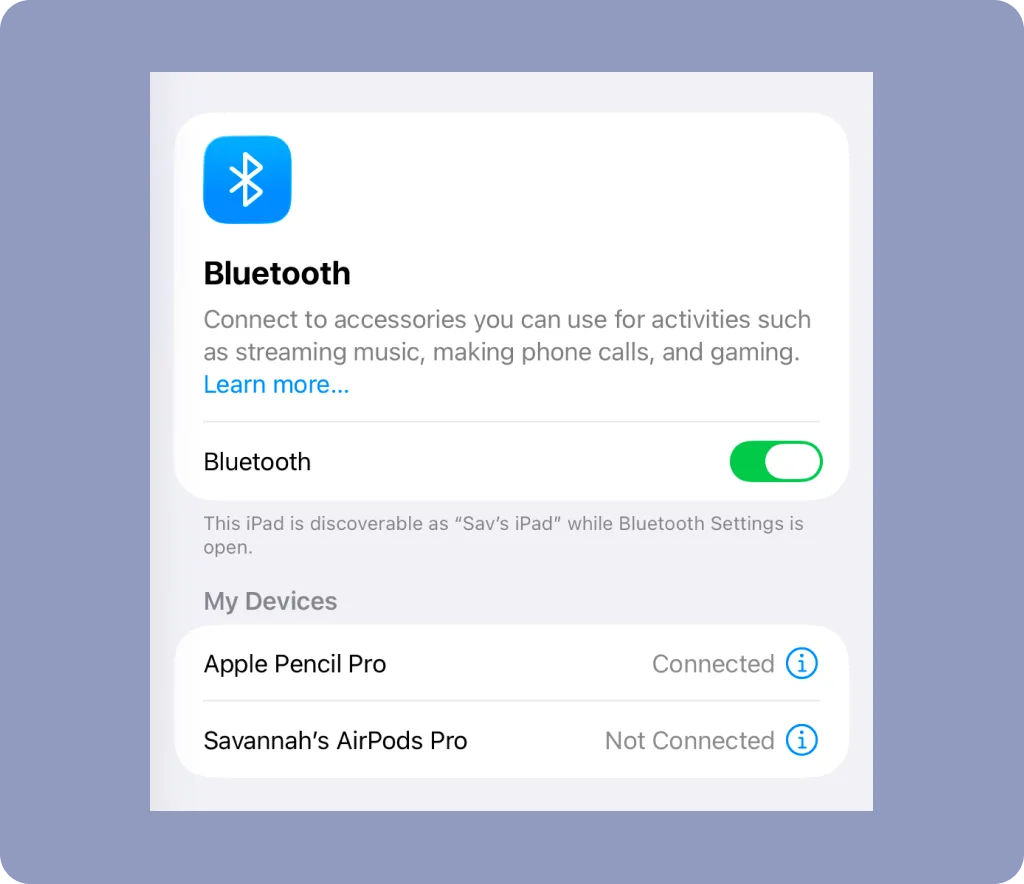
On your iPad, go to Settings > Bluetooth. Toggle Bluetooth off, wait a few seconds, then turn it back on. Check and see if your Apple Pencil reestablishes connection.
Check your Apple Pencil nib
Make sure the tip of your Apple Pencil is tightly secured and not damaged. You can also swap in a different Apple Pencil tip to test if a fresh tip reestablishes iPad connection.
If you’re using a ballpoint Apple Pencil tip like Rock Paper Pencil, double-check that it’s twisted on properly.
3. Force Re-Pair your Apple Pencil to iPad
If charging and reconnecting your Apple Pencil didn’t help, it’s time to force a fresh pairing to your iPad.
First, un-pair your Apple Pencil from your iPad.
- Charge your Apple Pencil for at least 1 hour using the instructions above.
- Open
Settings>Bluetooth. Find your Apple Pencil underMy Devicesand tapForget This Device. - Re-pair your Apple Pencil following the below instructions for your Apple Pencil version.
Then, force re-pair your Apple Pencil:
- Apple Pencil 1st generation: Plug the Apple Pencil into your iPad’s Lightning port and tap
Pairwhen it appears. - Apple Pencil 2nd generation / Apple Pencil Pro: Attach the Apple Pencil to the side of your iPad. A pairing notification will pop up.
- Apple Pencil USB-C: Connect the Apple Pencil to your iPad using the included USB-C cable. Slide open the cap on the Pencil, plug in the cable, and tap
Connectwhen prompted.
Once you’ve re-paired, test your Apple Pencil to confirm it’s working with your iPad.
Need more help pairing your Apple Pencil to iPad? How to Pair Apple Pencil with iPad →
Replace your Apple Pencil tip with Rock Paper Pencil
Now that your Apple Pencil is working again, make sure you have the right accessories to get the most from your iPad.
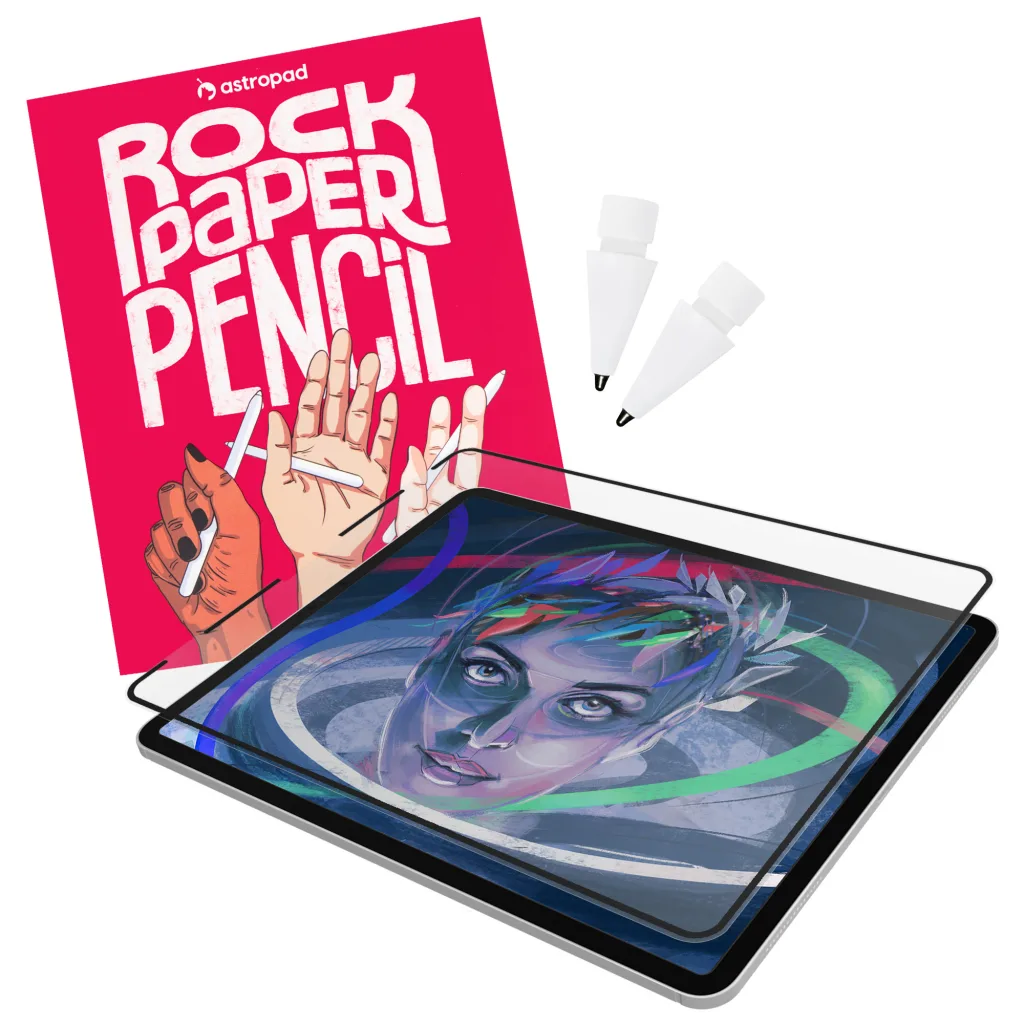
Rock Paper Pencil combines a nano-textured screen protector and a precision-engineered Apple Pencil tip to deliver an authentic, pen-on-paper feel.
- Removable screen protector. Rock Paper Pencil’s screen protector is infused with a microscopic texture that mimics the “tooth” of fine-grain paper to provide the perfect amount of friction for precise control. It’s removable, reusable, and super easy to install.
- Precision-engineered ballpoint tip. The custom Apple Pencil tip works exclusively with our unique screen protector and delivers a subtle “bite” with every stroke to create a familiar and satisfying drawing experience.