

The Mac mini has become the go-to machine for running AI agents: It’s compact, Apple Silicon-powered, and affordable enough to dedicate entirely to the task. CNN Business called it “the hottest Apple product right now.” New to this? Start with our headless Mac mini setup guide. Shopping for a screen? See the best monitors for Mac mini.
The catch: the moment you unplug the monitor, you lose visibility. Is the agent running? Did it error out? Standard remote desktop tools weren’t built to answer those questions from an iPhone at 11pm.
This guide covers every method for accessing a Mac mini via remote desktop — what works, what doesn’t, and why most tools fall short for headless AI agent setups. What’s covered:
- What Mac mini remote desktop means: The three use cases driving demand in 2026
- The headless Mac mini problem: What breaks when you unplug the monitor
- Remote desktop methods compared: Apple Screen Sharing, SSH, enterprise tools, and Workbench side by side
- Why Workbench is different: Built specifically for headless Mac mini and AI agent workflows
- How to get set up: Takes about five minutes
- FAQ: The most common questions about Mac mini remote desktop
What Is Mac Mini Remote Desktop?
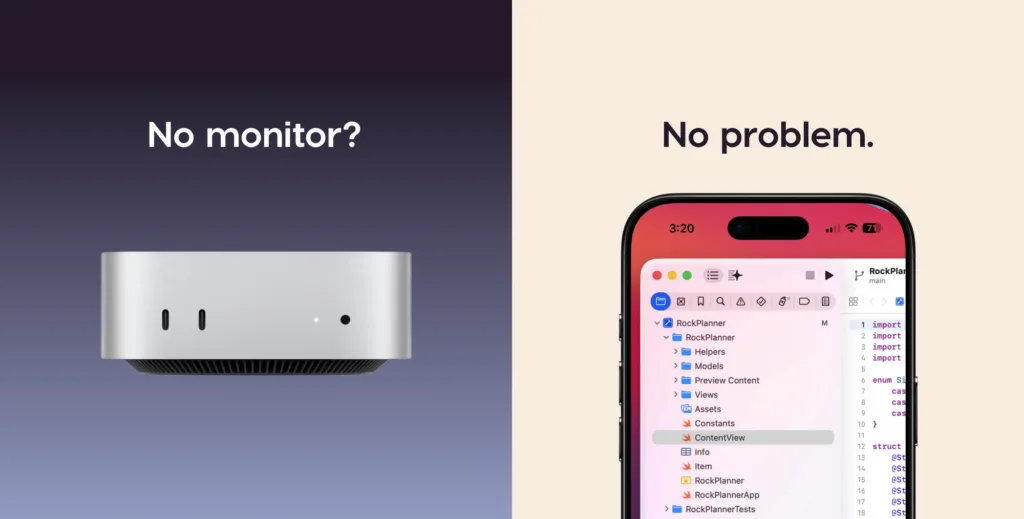
Mac mini remote desktop is the ability to view and control your Mac mini from another device (such as an iPhone, iPad, or another Mac) without being physically present at the machine or having a monitor connected. This includes seeing the Mac’s screen in real time, launching apps, monitoring running processes, and intervening when something goes wrong.
In 2026, there are three main reasons people need Mac mini remote desktop:
- AI agent oversight: Checking in on AI agents (Claude Cowork, OpenClaw) running overnight on a headless Mac mini, restarting tasks, or intervening when something stalls
- Home server use: Managing a Mac mini running as a file server, media server, or automation hub
- Remote work: Accessing a work or home Mac from another location
This guide focuses primarily on the AI agent use case, which has emerged as a distinct category with requirements that older remote desktop tools simply weren’t designed to handle.
The Headless Mac Mini Problem
A “headless” Mac mini is one running without a monitor, keyboard, or mouse. This setup has exploded in popularity alongside the AI agent wave — tools like OpenClaw have turned the Mac mini into a 24/7 autonomous workstation, and developers are buying them specifically to leave running unattended.
The problem is that macOS wasn’t designed with this in mind. When you disconnect a monitor, several things break:
- Resolution degrades: Apple Silicon Mac minis default to a 1920×1080 1x display when no monitor is connected. That sounds fine until you’re viewing it on a Retina iPhone or iPad — at 1x, everything looks fuzzy and cramped
- Apps behave unexpectedly: Some UI elements don’t render correctly without a display present, which can affect how AI agent interfaces look and behave
- You’re flying blind: Without a way to see the screen, you have no idea whether your agent is running, waiting for input, or has been stuck in an error loop for the past four hours
- Standard tools need workarounds: Most remote desktop apps assume a monitor is present and require display dummy adapters or complex configuration to work correctly with headless setups
This is exactly the problem we built Workbench to solve. But first, let’s look at all your options.

Methods for Mac Mini Remote Desktop
There are several ways to remotely access a Mac mini. Here’s how the main options stack up:
| Apple Screen Sharing | SSH | Enterprise Tools | Workbench | |
|---|---|---|---|---|
| Best for | Quick Mac-to-Mac access on local network | Terminal / command-line tasks | Teams & IT management | AI agent oversight / headless Mac mini |
| iPhone/ iPad app | ❌ Mac only | ⚠️ Via third-party apps | ✅ | ✅ |
| Full desktop view | ✅ | ❌ Terminal only | ✅ | ✅ |
| Headless support | ⚠️ Needs dummy plug | ✅ (Terminal only — no display involved) | ⚠️ Needs dummy plug | ✅ Native |
| Works over internet | ⚠️ Requires config | ✅ | ✅ | ✅ Zero config |
| Setup complexity | Easy | Moderate | Moderate | Easy |
| Price | Free | Free | $24–$100+/month | Free |
Apple Screen Sharing is the fastest option if you’re on the same network and accessing from another Mac. However, there’s no iPhone app, and headless setups require a display dummy adapter to maintain resolution.
SSH is powerful for terminal tasks (restarting services, checking logs, running scripts) but can’t show you the GUI. If your AI agent has a visual interface or you need to see what’s on screen, SSH alone won’t cut it.
Enterprise tools (TeamViewer, AnyDesk, Jump Desktop) were built for corporate IT and technically work for Mac mini remote desktop, but they’re expensive, complex, and treat mobile apps as an afterthought. Headless setups require manual configuration and display dummy adapters.
Workbench: Built for Headless Mac Mini remote desktop
Workbench was built from scratch for exactly this use case: headless Mac mini remote access from an iPhone or iPad.
We’re the team behind Luna Display, which turned iPads into second monitors for over a million users. The same low-latency display technology that powers Luna Display is what makes Workbench’s streaming quality noticeably better than VNC-based tools.

What sets Workbench apart:
✅ Native iPhone and iPad app. It’s not just a port of a desktop app crammed onto a small screen. Workbench’s mobile interface is designed for touch, with controls that make sense when you’re checking in remotely from your iPhone or iPad.
✅ Unified virtual display (no dummy plug needed.) When you unplug a monitor, Apple Silicon Macs default to a low-resolution 1x display that looks fuzzy on Retina devices. Workbench’s Unified Display combines all of your Mac’s displays into a single virtual screen that matches the resolution of whatever device you’re connecting from.
✅ High-fidelity streaming. Workbench uses LIQUID, Astropad’s proprietary codec, to deliver perceptually lossless video with full Retina support. Text is crisp, color is accurate, and latency stays low even over cellular — a noticeable step up from VNC or Apple Screen Sharing.
✅ Voice dictation. Speak to your Mac mini hands-free. Type prompts, issue commands, or interact with your AI agent using your voice (useful when you’re away from a keyboard).
✅ Intelligent sleep management. Workbench manages your Mac’s sleep settings automatically, so your machine is awake and reachable whenever you need it — without you having to configure Energy Saver manually.
✅ Focused on personal use, not enterprise IT. Workbench is built for individual users who want to control their own Mac mini remotely — not for IT teams managing hundreds of devices. The setup reflects that: install the app, create an account, and you’re in.
✅ Free to use. The free tier of Workbench gives you 20 minutes of daily access (no subscription or credit card required).
How to set up Workbench
If it’s your first time running your Mac mini headless, there are a few settings to adjust on your machine before installing Workbench. You’ll want to configure macOS settings (FileVault, auto-login, and sleep) so your Mac mini stays reachable after a reboot. Here’s the full headless Mac mini setup guide →
Setting up Workbench takes less than five minutes. Install the Mac app on your Mac mini, download the iPhone app, and sign into the same account on both.
You’ll see your Mac mini appear automatically in the connection list. No port forwarding, no router configuration, no VPN.
Which Remote Desktop Tool Is Right for You?
Remote desktop tools get grouped together, but they’re built for different workflows. Here’s a quick breakdown by use case:
Best for monitoring AI agents on a headless Mac mini: Workbench
If you’re running Claude, OpenClaw, or other agents continuously on a Mac mini, Workbench is the purpose-built option. Native iPhone and iPad apps, zero-config headless support, voice dictation, and LIQUID streaming make it the fastest way to check in, nudge a stuck task, or restart a job from anywhere. Read more: Remote Desktop for AI Agents: Why Traditional Tools Don’t Cut It →
Best for quick access from another Mac on the same network: Apple Screen Sharing
It’s built into macOS, requires no installation, and works well for occasional Mac-to-Mac access at home or in the office. The limitations kick in fast — no iPhone app, headless setups need a dummy plug, and it doesn’t work easily over the internet.
Best for terminal and command-line tasks: SSH
If you’re comfortable in the command line and only need to restart a service, check logs, or run a script, SSH is free and works from anywhere. It can’t show you the screen, so it’s not a substitute for a full remote desktop tool.
Best for teams and cross-platform IT management: TeamViewer, AnyDesk, or Jump Desktop
If you need to manage multiple devices across Mac and Windows, or support a team, the enterprise tools are built for that. They’re significantly more expensive and complex for personal use.
See our full breakdown: Best Remote Desktop Apps for Mac (2026) →
FAQ
What is Mac mini remote desktop? Mac mini remote desktop is the ability to view and control your Mac mini from another device (like an iPhone, iPad, or another computer) without being physically present at the machine or having a monitor connected.
Can I control my Mac mini from my iPhone? Yes, and this is one of the most common reasons people set up remote desktop in the first place. With Workbench, you get a native iPhone app that gives you full remote desktop access to your Mac mini. You can see the screen, interact with apps, and use voice dictation — all remotely from your iPhone. See our step-by-step guide: How to control your Mac mini from your iPhone →
What is a headless Mac mini? A headless Mac mini is one that runs without a monitor, keyboard, or mouse. This is common for AI agent workflows, home servers, and always-on automation setups where the machine runs 24/7 without anyone sitting in front of it. See our complete guide for setting up a headless Mac mini →
Do I need a monitor to use a Mac mini? No. With Workbench, you can run your Mac mini completely without a monitor, and connect remotely via your iPhone, iPad, or another Mac. Workbench handles headless setups automatically — no display dummy adapters or resolution configuration required.
What’s the best remote desktop app for Mac mini? For AI agent workflows and headless setups, Workbench is the purpose-built option. For quick Mac-to-Mac access on the same network, Apple’s built-in Screen Sharing works. For enterprise IT use cases with multiple users and devices, TeamViewer or Jump Desktop may be more appropriate. See our full comparison of Best Remote Desktop Apps for Mac (2026) →
Does Workbench work over the internet, not just local Wi-Fi? Yes. Workbench works over both local Wi-Fi and the internet, so you can remotely access your Mac mini from anywhere.
Is Workbench free? Workbench includes 20 minutes of free remote desktop access per day. Unlimited access is $14.99/month or $79.99/year.
Do I need a dummy plug for a headless Mac mini? Short answer: no, but with a caveat. Older Intel Macs sometimes needed an HDMI dummy plug to maintain full resolution without a monitor. Apple Silicon Mac minis (M1 and later) are better — you can unplug the monitor and they keep running normally. The catch is that by default they create a low-resolution 1920×1080 1x display, which looks fuzzy on Retina iPhones and iPads. Workbench’s Unified Display feature solves this automatically, no dummy plug required. Full breakdown: Do You Need a Dummy Plug for a Headless Mac Mini? →
How is Workbench different from Apple Screen Sharing? Apple Screen Sharing requires another Mac, doesn’t have an iPhone app, and struggles with headless setups. Workbench is designed specifically for iPhone and iPad, works out of the box with headless Mac minis, and includes features like voice dictation and Unified Display built for AI agent workflows.
Can I use Workbench to monitor AI agents running on my Mac mini? Yes — this is the primary use case Workbench was built for. You can check in on running agents, see what’s happening on screen, restart tasks, and interact with your Mac using voice dictation, all from your iPhone. Read our guide: Why traditional remote desktop tools don’t work for remote agents

Remote desktop for your Mac mini. Free for 20 minutes/ day
Need to remotely access your Mac mini? Use Workbench to connect without using any additional monitors or peripherals.
Workbench is free for 20 minutes per day, no subscription or credit card required.
- Fast, high-fidelity streaming. Interact with your Mac in real time with extremely low latency, even on high-resolution displays.
- Voice input for prompts. Dictate commands directly to your AI agents from your iPhone or iPad.
- Built for Apple devices. Remotely control your desktop from your iPad, iPhone, or another Mac.