
Hey there, it’s Kayla Ann! I’m an artist and illustrator who uses Astropad Studio to create my vintage-inspired digital art.
Today I want to dive into my favorite tool that I use day to day, the Image Trace Tool in Adobe Illustrator!
The Image Trace tool makes it easy to transfer drawings from my sketchbook into my digital workspace. In the segment ahead, I’ll break down my process step by step.
Let’s get started!
1. Take a picture or scan your artwork
Start by taking a picture of your drawing.
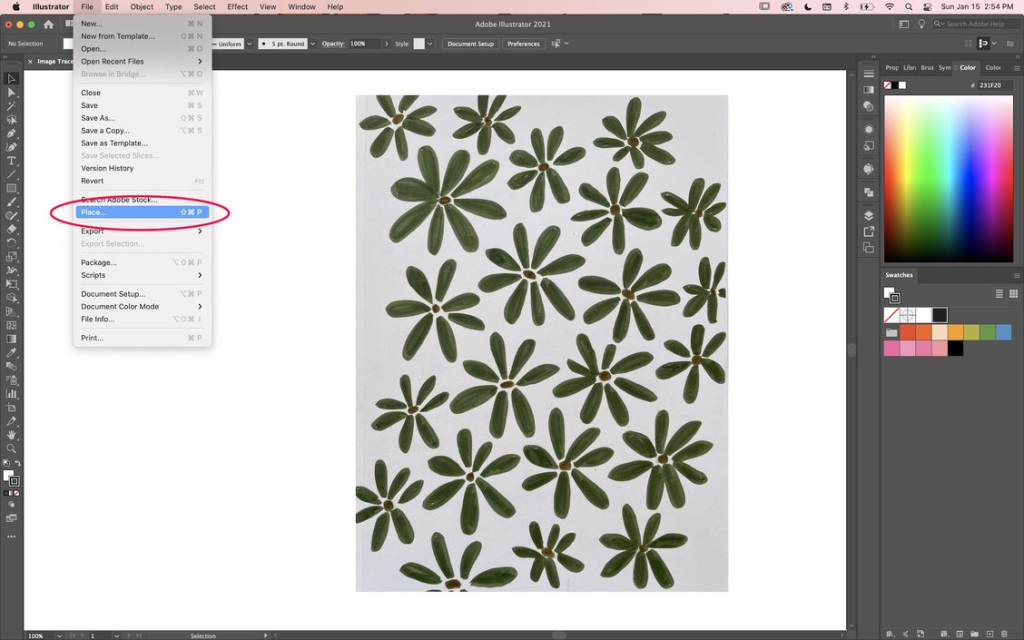
Then, AirDrop the photo/scan to your computer and import it into Illustrator by going to File > Place and selecting the file you want to import.
2. Adjust settings in the Image Trace panel
With your drawing selected, open up Image Trace by selecting the icon via the toolbar in your workspace — it looks like a circle with three points. If it’s not there, click Window > Image Trace.
The presets should be set to Default. Over time you can save custom presets, but for now, we will just use the Default selection.
Under view, “Tracing Result” should be selected. Depending on if your drawing is in black and white or color, select which mode you would like to trace in. For this example, I’ll be using the Black and White mode.
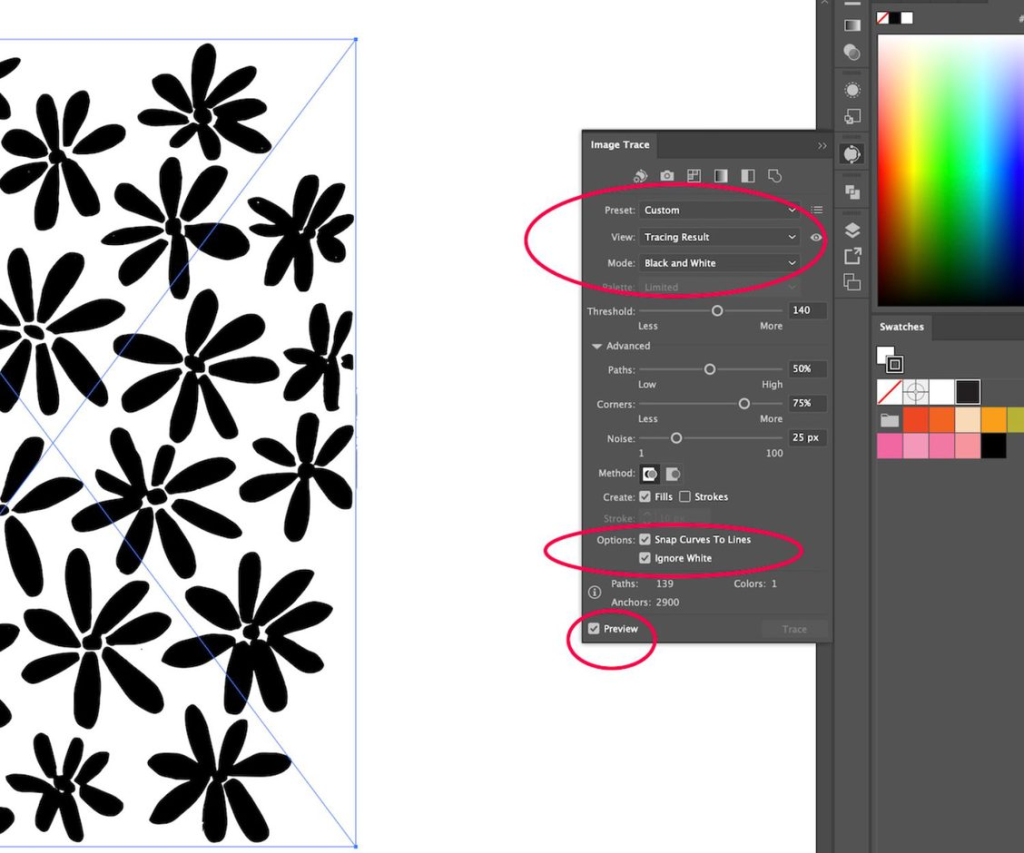
Hit the advanced dropdown arrow and make sure “Ignore White” and “Preview” are checked. This ensures that the Image Trace will only capture your art and not the background. This is super helpful when it comes to recoloring your work and moving around your motifs.
Under advanced, you’ll also see adjustments for threshold, paths, corners, and noise. Play around with adjusting these selections to make sure your art is as smooth, bold, or textured as you would like.
3. Time to trace and expand!
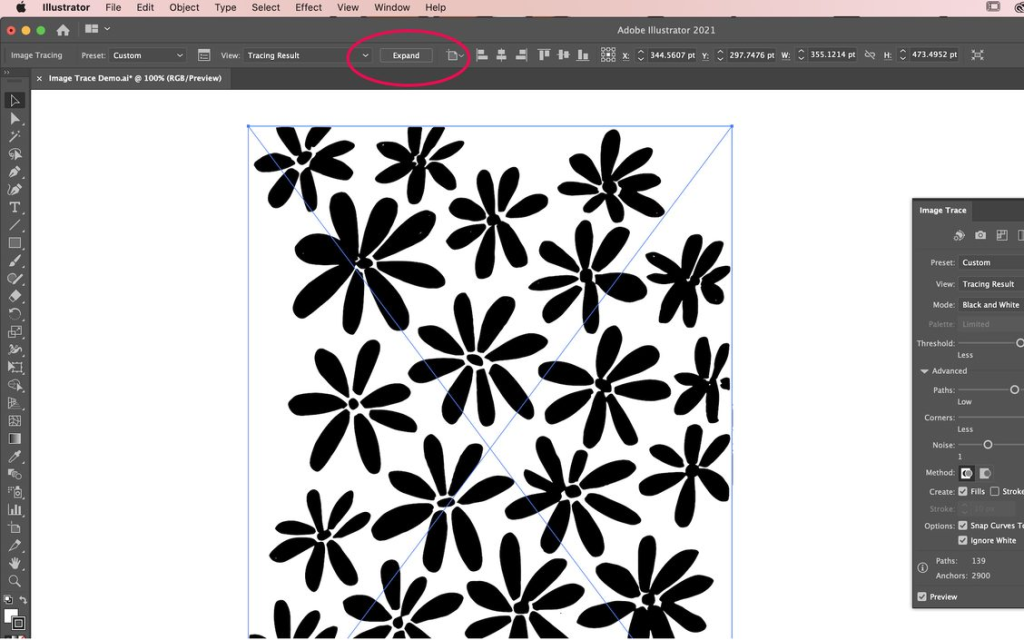
Once you’ve made all your adjustments in the advanced panel, click expand in the upper toolbar to convert your art and selections into a digital vector image!
From here you can ungroup/group, change the color, size, or move around motifs!
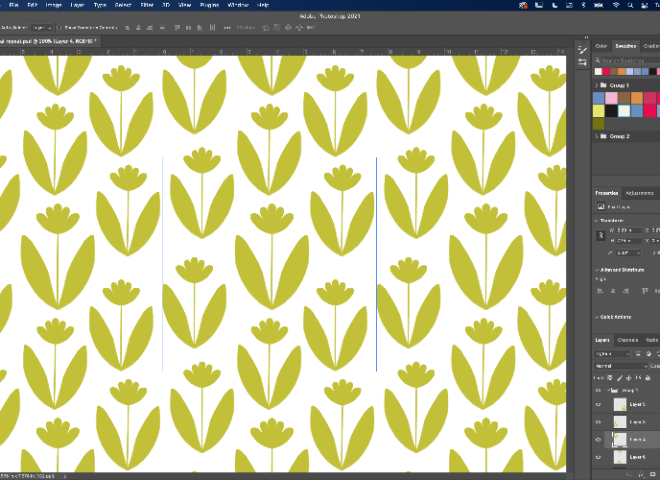
I was able to make a repeat pattern out of my artwork using Image Trace and then the pattern builder tool. See how easy that was?
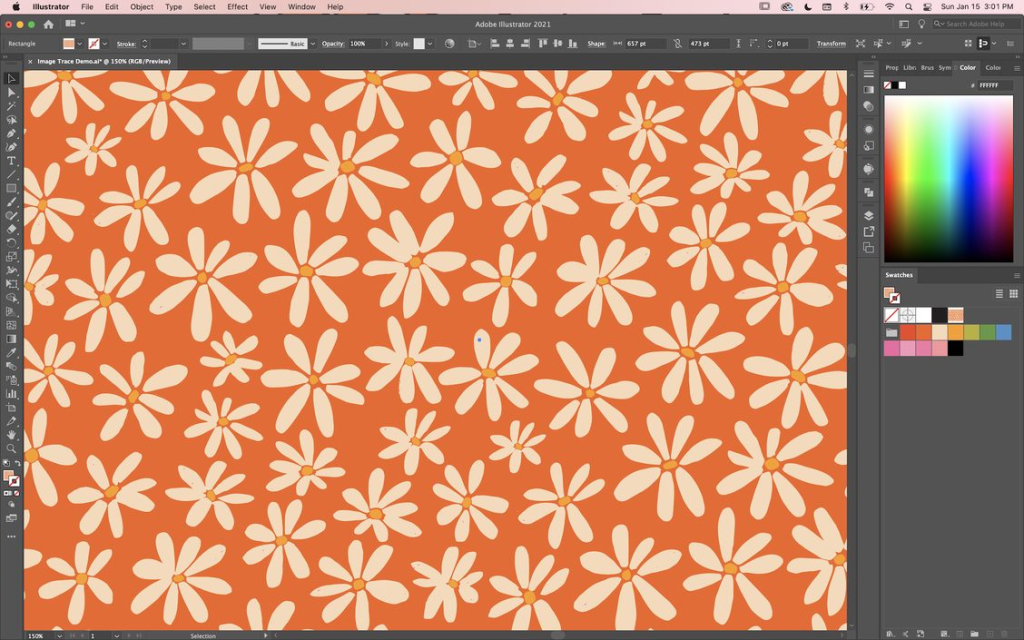
The Image Trace tool is a great way to turn your hand-drawn art into vector art. I hope this short tutorial inspires you to use this tool more in your workflow.
Have any other questions or want to see how a specific tool is used in Adobe Illustrator? Let me know!