Smartphones are a blessing and a curse; you are only ever a few taps away from communicating with people across the globe, but that comes with a heavy price. In the modern world, people are expected to be available instantly.
Endless beeps, buzzes, and vibrations are enough to annoy anyone, especially if you’re trying to focus on school, work, or spend quality time with your partner.
The solution is simple: Focus Mode on iPhones offers an escape from the digital realm.
what is focus mode on iphone?
In 2021, Apple released a whole host of new iOS 15 features. Thankfully, one of them was Focus Mode.
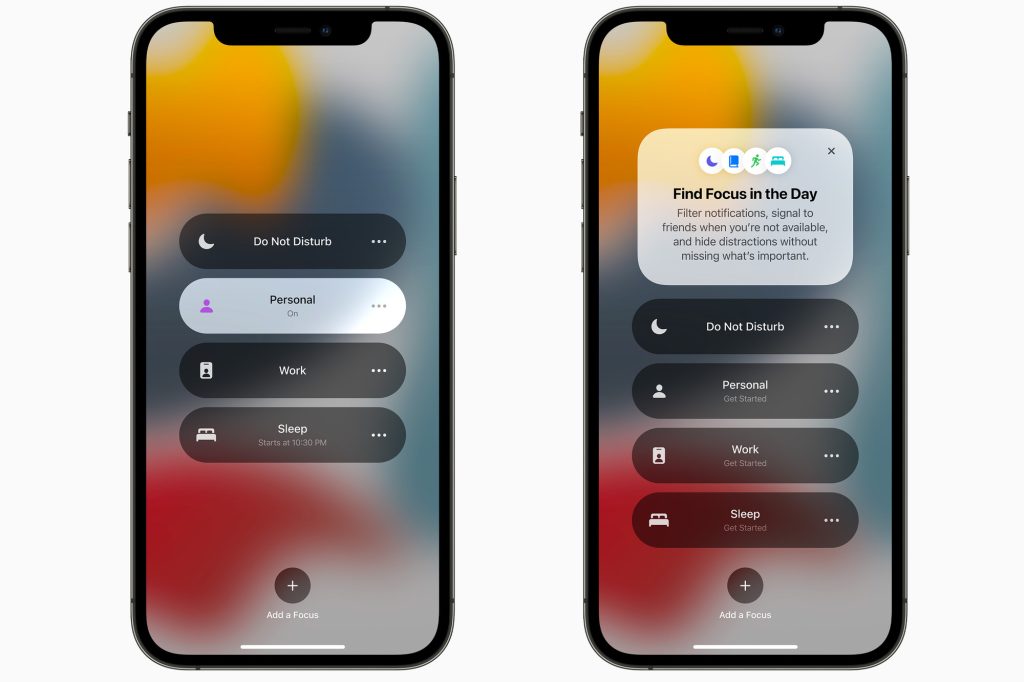
True to its name, Focus Mode gives you the power to focus on the things that matter. You can silence all notifications in one tap, or allow important notifications to slip through the net. As with all iPhone features, personalization is at the heart of Focus Mode.
do all iphones have focus mode?
Unfortunately, not all iPhones have Focus Mode.
You can only use Focus Mode on your iPhone if it runs iOS 15 or later. In practice, this means that all iPhones from iPhone 6 onwards have an in-built Focus Mode.
Focus Mode is also available on Macs, MacBooks, and iPads that run macOS Monterey and iPadOS 15 or later.
where is focus mode on iphone?
You can find Focus Mode in two ways.
- Swipe down to open the Control Center
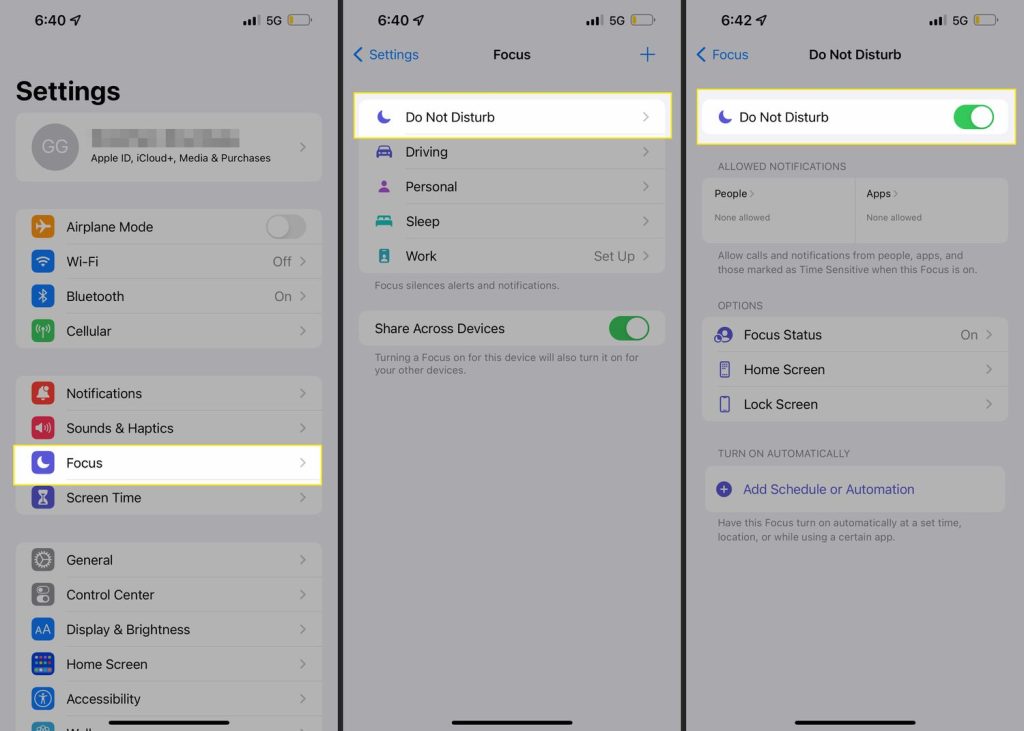
- Go to Settings > Focus
how to turn on focus mode on iphone
Activating Focus Mode on iPhone is the easiest part! Just press the Focus button in the Control Center or opt for a more personalized experience in Settings. Whichever option you choose, Focus Mode is never more than a few taps away.
Although most people use the Control Center to activate Focus Mode on their iPhone, we recommend going through Settings for more customization options.
customize focus mode on iphone via the control center
Do Not Disturb is the main feature in Focus Mode. With a simple tap, you can silence notifications for all your apps, contacts, and emails.
Before you activate Do Not Disturb from the Control Center, press the three dots on the right. A drop-down menu will appear with these options:
- Until one hour
- Until this evening
- Until I leave this location
Simply select an option, and Do Not Disturb will automatically activate.
For more customization options, select Settings from the drop-down menu. There, you set a schedule that works for you.
focus mode on iphone: the four focuses
Focus Mode has four sections: Driving, Personal, Sleep, and Work. All of them are slightly different, but most of the features overlap.
- Apps. Allow notifications from certain apps
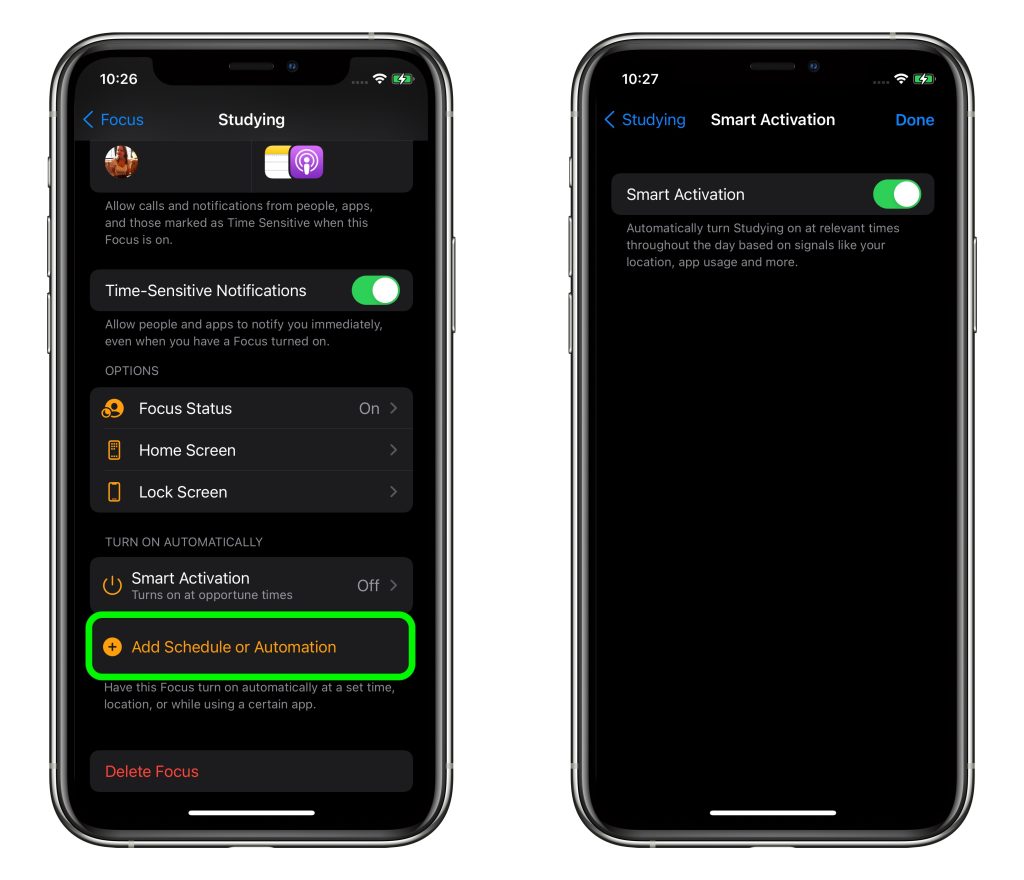
- Activation. Automatically activate each section when specific conditions are met
- Customize screens. Choose a Lock Screen designed to limit distractions
- Focus Filters. Dictate how apps act when Focus Mode is activated
- People. Allow texts and calls from certain people
There are plenty of options available, so make sure to scan through each Focus.
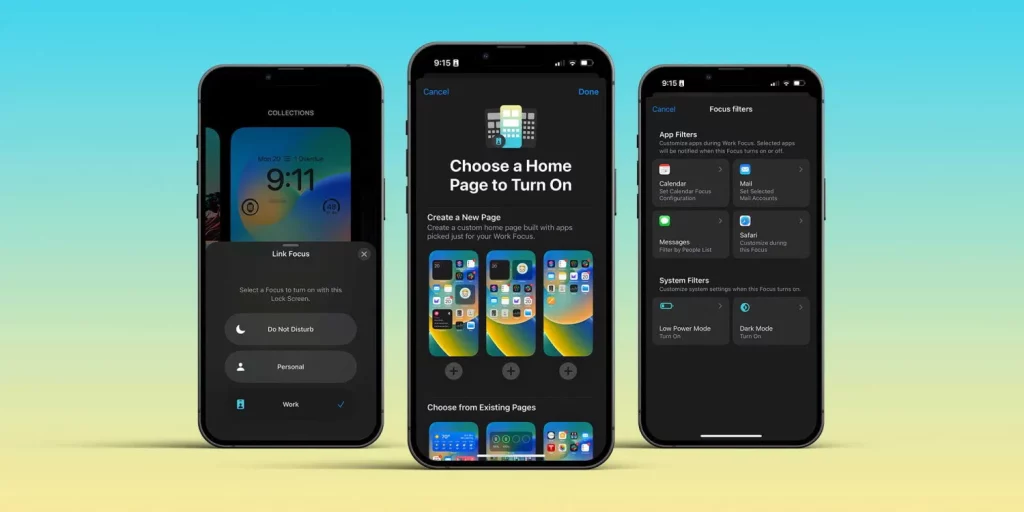
smart activation
Smart activation is one of the most popular customization options. Once enabled, this feature automatically activates Focuses when you trigger actions.
- Set an app. Turn on Personal Focus when you open the Books app
- Set a location. Turn on Work Focus when you’re at the library
- Set a schedule. Turn on Sleep Focus between 9 pm and 7 am
Want to make the most of your phone time? Discover how to read more on iPhones.
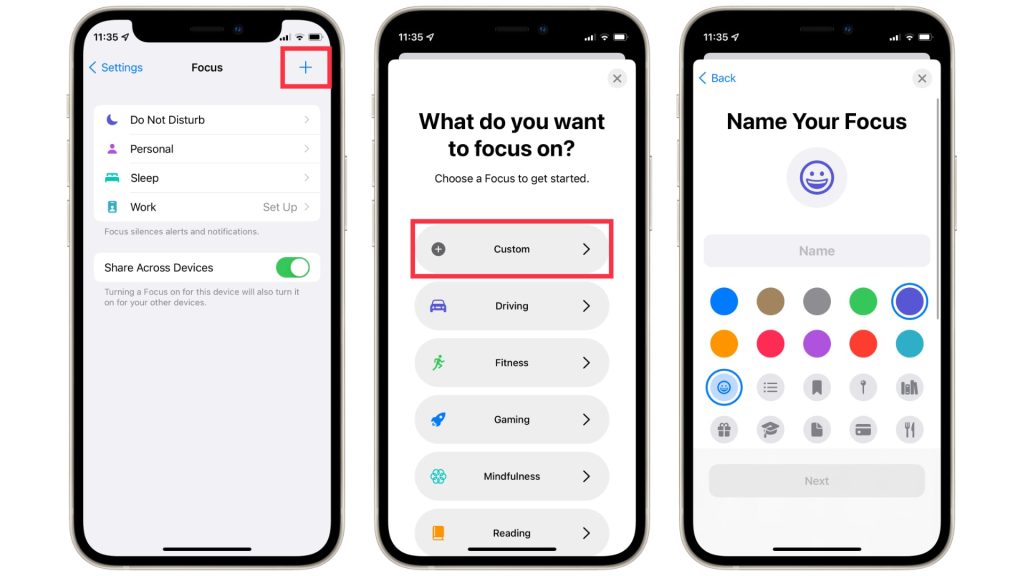
create a custom focus
One of the best things about Focus Mode on iPhone is that you can create a custom Focus.
- Go to Settings > Focus
- Tap the + button in the top right-hand corner
- Choose from Fitness, Gaming, Mindfulness, or Reading, or create a custom Focus
When you create a custom Focus, you can name it, assign a color, logo, or emoji, and personalize all the features as usual.
delete a focus
If you want to prune your Focus list, you can delete them at any time.
- Go to Settings > Focus
- Choose a Focus
- Scroll down and press delete
how to turn off focus mode on iphone
Deactivating Focus Mode on iPhone is just as easy as activating it.
- Go to Settings > Focus
- Tap Focus in the Control Center
You can also ask Siri to activate or deactivate Focus Mode.
ask siri to activate or deactivate focus
You can ask Siri to activate or deactivate Focus Mode as a whole or just individual Focus sections.
- Activate Siri
- Say “Turn on the Sleeping Focus”
frequently asked questions about focus mode on iphones
can i activate focus mode without opening settings?
You can easily activate Focus Mode from the Control Center. Just swipe down on your screen, select Do Not Disturb, and choose a Focus. You can even customize Do Not Disturb by time and location or add a new Focus entirely.
does focus mode deactivate my alarms?
No, Focus Mode doesn’t deactivate your alarms. When you set an alarm, it will go off regardless of whether you have activated Focus Mode on your iPhone.
how do i know if focus mode is on?
When Focus Mode is on, a crescent moon symbol will appear in the upper left-hand corner of the status bar.
who can see my focus status?
When you activate Do Not Disturb, contacts can see that your iMessage notifications are silenced. You can disable this feature in Settings.
bookcase: a better way to read on your phone
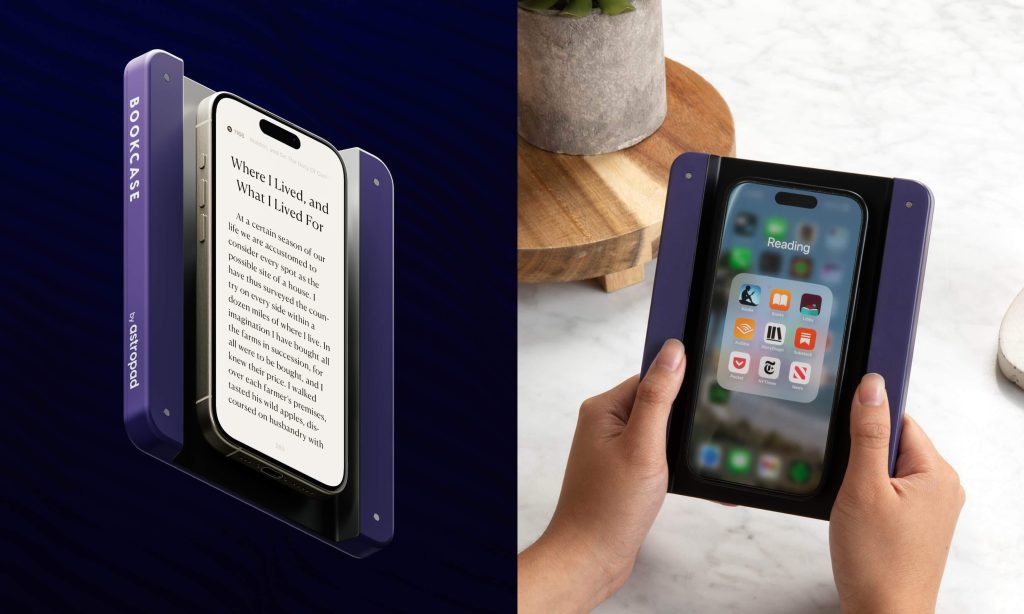
Bookcase transforms any smartphone into an ergonomic e-reader by extending the area around the screen. The edges of the case provide grips on both sides of your phone so you can hold it more comfortably and enjoy a clear view of your screen while reading.
Bookcase connects to your iPhone via a MagSafe ring. If you don’t have an iPhone (or have an older iPhone model), don’t worry. We’ve included a MagSafe Compatibility Kit, so you can enjoy hours of reading.
Plus, Bookcase carries an embedded NFC tag for creating user shortcuts. With the companion app, you can tell Bookcase which of your favorite reading apps to open and which phone settings to toggle (Do Not Disturb, Reading Mode, etc.) when your phone is connected. The next time you place your phone into Bookcase, your settings will trigger automatically.